
Windows app

X Radio Stream Finder - Free Internet Radio for Windows

Search and play 50,000+ internet radio stations on Windows, by genre, country or language. Star the songs you hear, then find them later on YouTube or Spotify in one click. Free, no account, no ads in the app. No install? Try the online player first.

Version
3.0
Size
15.8 MB
Windows
10 and 11, 64-bit
Price
Free
X Radio Stream Finder
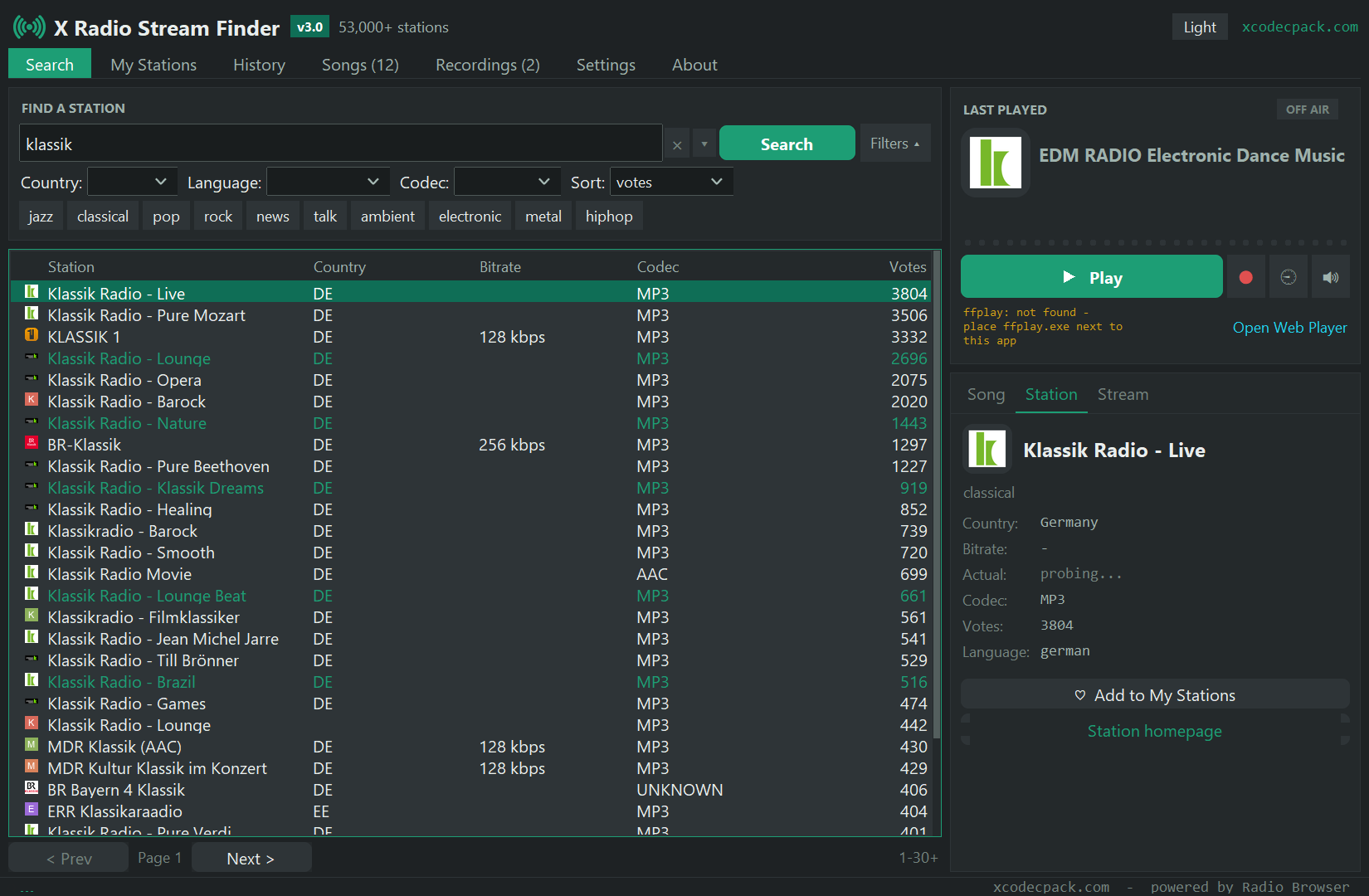
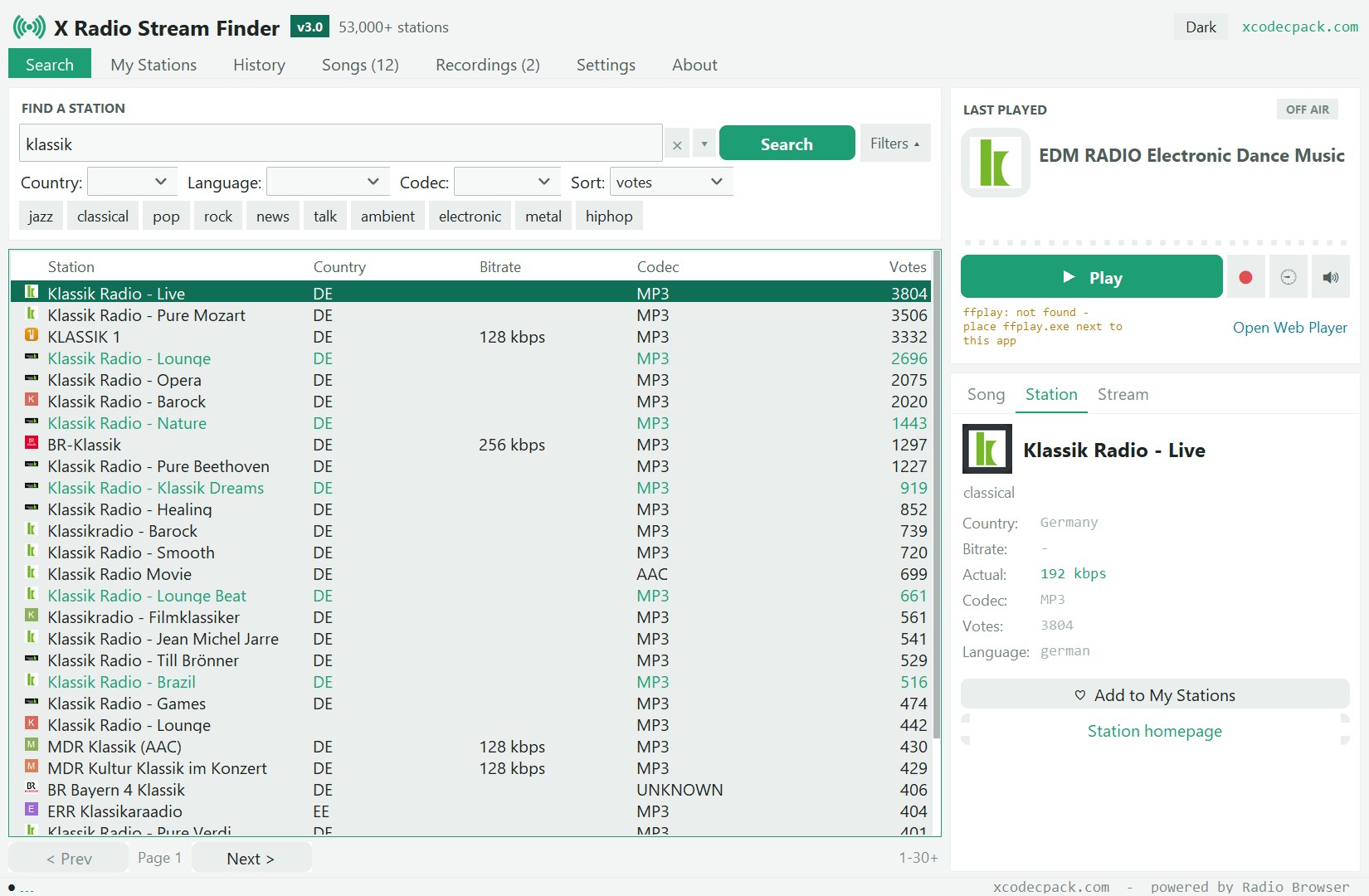
X Radio Stream Finder 3.0 - searching internet radio stations, with the Now Playing panel, the current song and the visualizer
Advertisement
Portable ZIP or installer
50,000+ stations - every genre, country and language
Built-in player - with the song title as it changes
Star songs, search them later - YouTube, Spotify and 10 more
New X look - dark and light theme, hideable filters
Free - Windows 10 and 11, 64-bit - v3.0 - 15.8 MB

New in 3.0 "Family Look": see what's new → Optional: ffplay.exe for the built-in player.

Advertisement

What X Radio Stream Finder does

50,000+ stations - the open Radio Browser database, every genre, country and language
Search and filter - by name, genre, country, language and codec, sorted by votes, clicks or bitrate
Hide the filters - one click on Filters, or Ctrl+L, for a cleaner window
Built-in player - streams play inside the app with ffplay, with a LIVE timer and a visualizer
Now playing titles - the artist and song the station sends, as it changes
Song, Station and Stream tabs - the song on air with the last songs heard, the station details and the stream links, next to the player
Star the song - Ctrl+B or Star on the Song tab saves the track into the Songs tab
Search songs later - on YouTube, Spotify, Apple Music, Deezer, Beatport and 7 more, in one click
Listening history - every title heard, grouped by day, station or song
My Stations - favourites in groups, with notes and the last played time
M3U8 and PLS - export your stations as a playlist, or import the ones you have
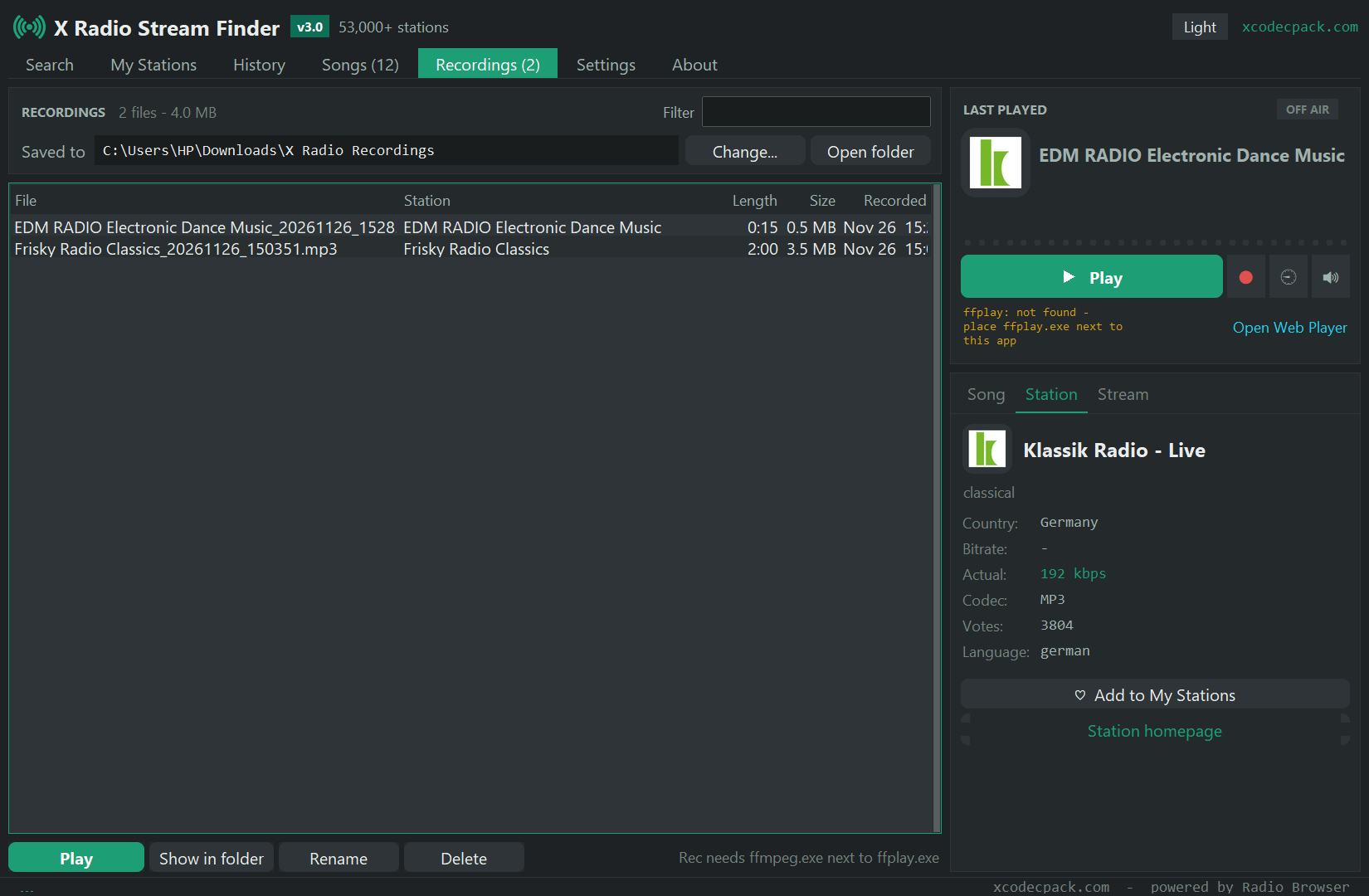
Recordings tab - every recording with its station and length - play, rename or delete
Record and sleep timer - save a stream to a file, or let the radio stop by itself - the timer shows the minutes left
Keeps the PC awake - new: Windows won't sleep or hibernate while a station plays or records
Song pop-up, your size - new: Large with a Star button, Compact or a slim Strip - in any corner, or off
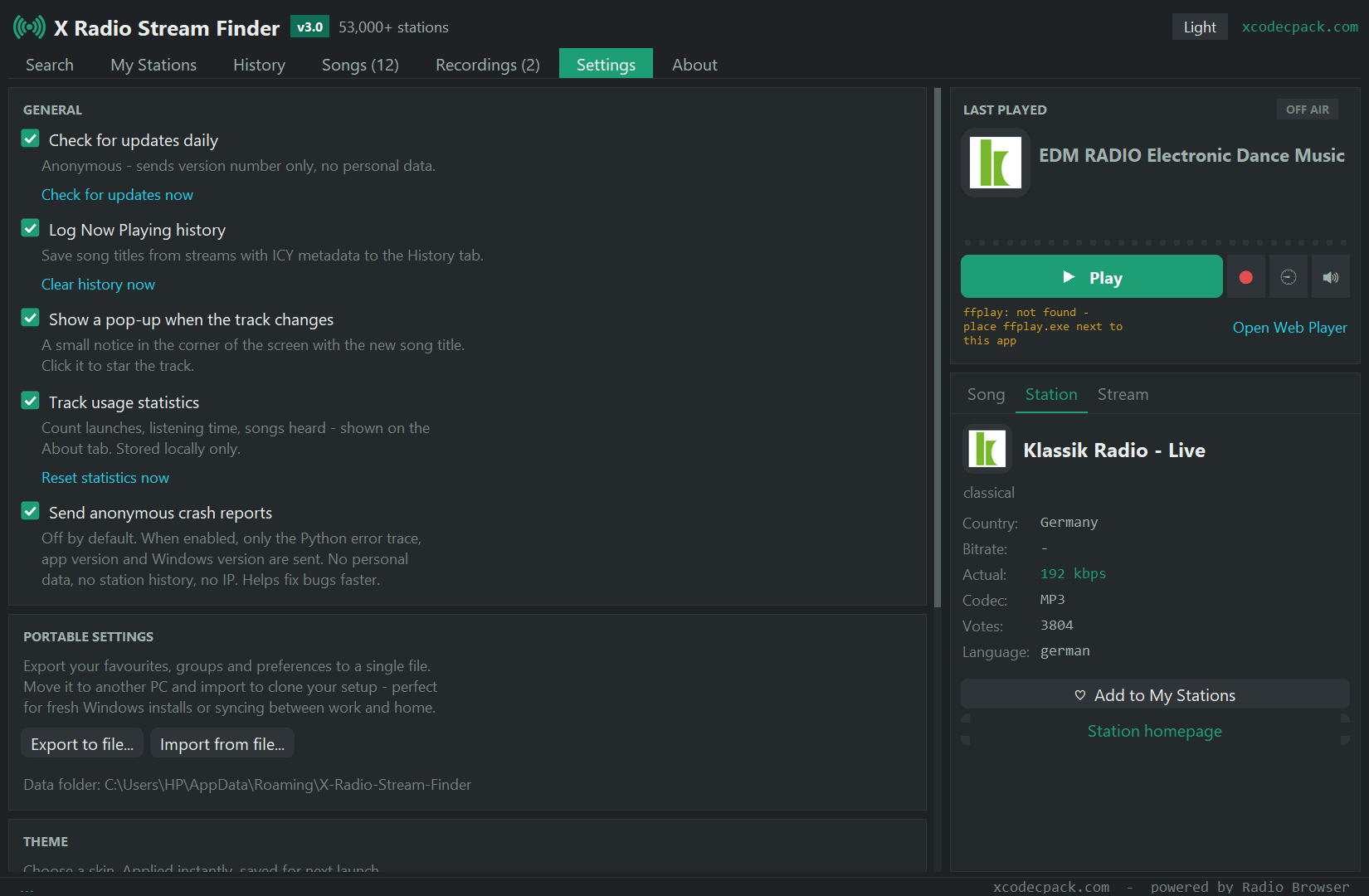
Dark and light theme - the X look of the other apps, with a Light button in the header and a title bar in the theme colours
Your listening stats - listening time and songs heard on the About tab - copy or share them
External players - no ffplay? Streams open in VLC, MPC-HC or your default player
Free and private - no account, no ads in the app, installer or portable ZIP

X Radio Stream Finder screenshots

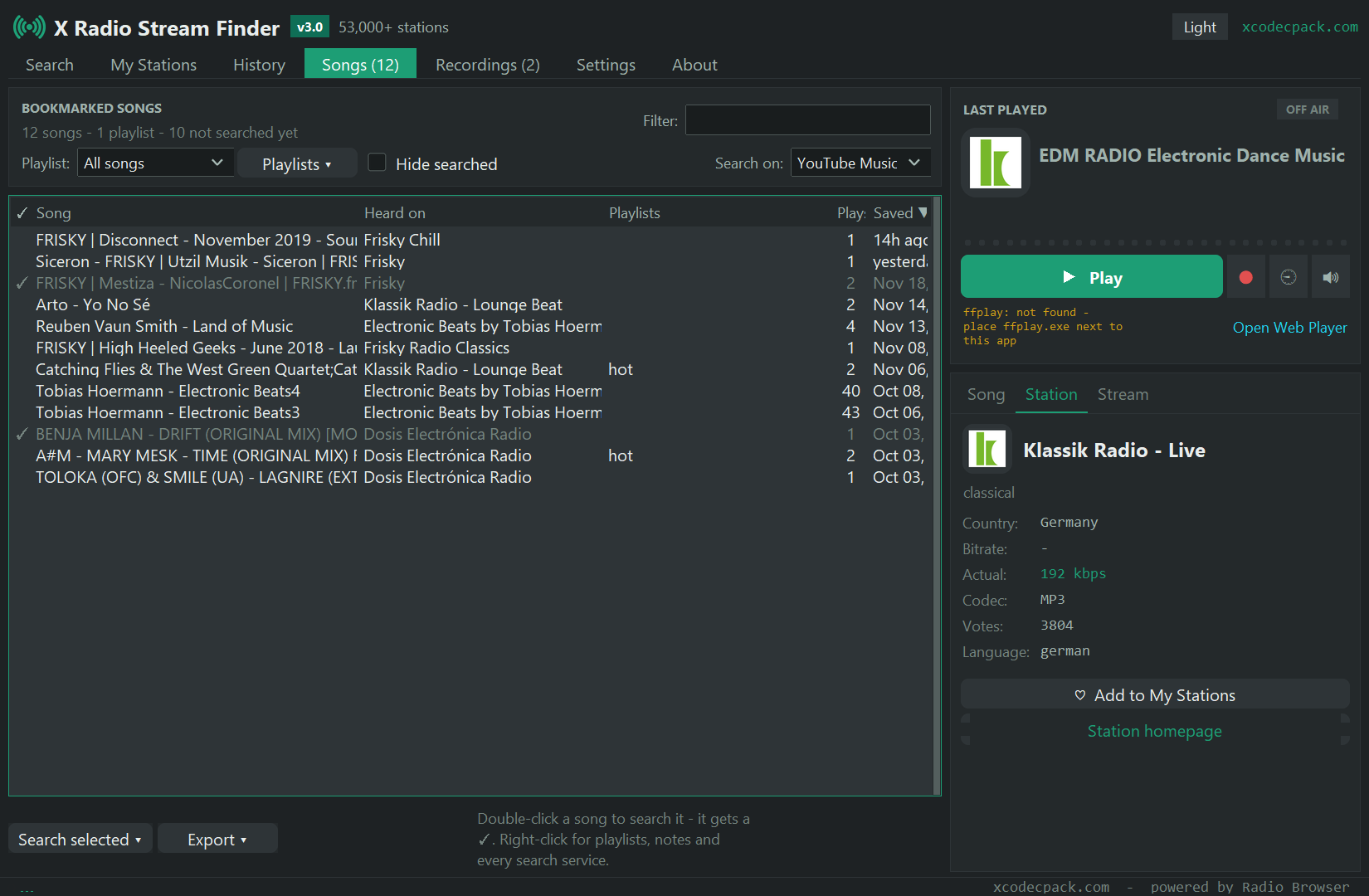
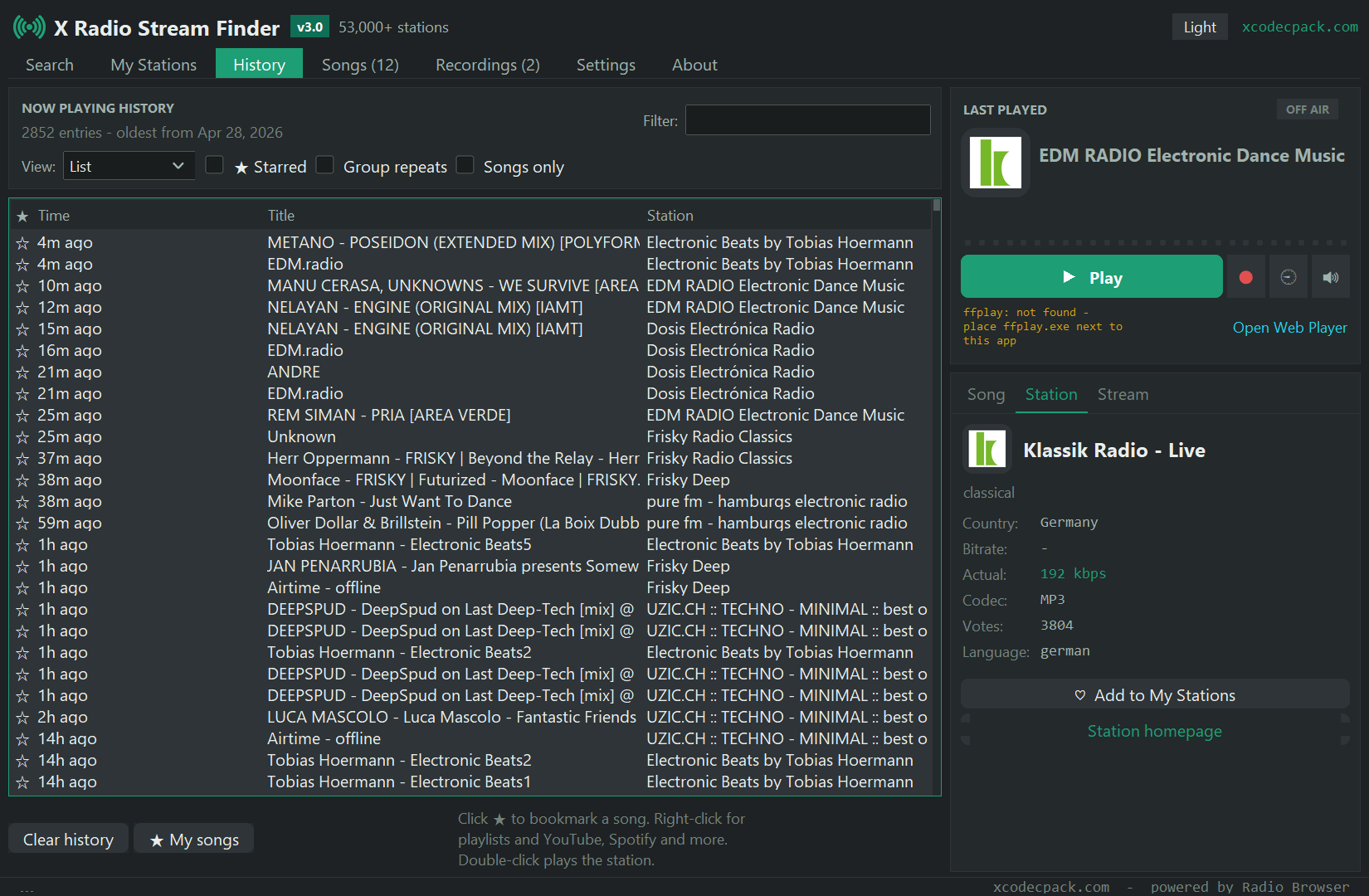
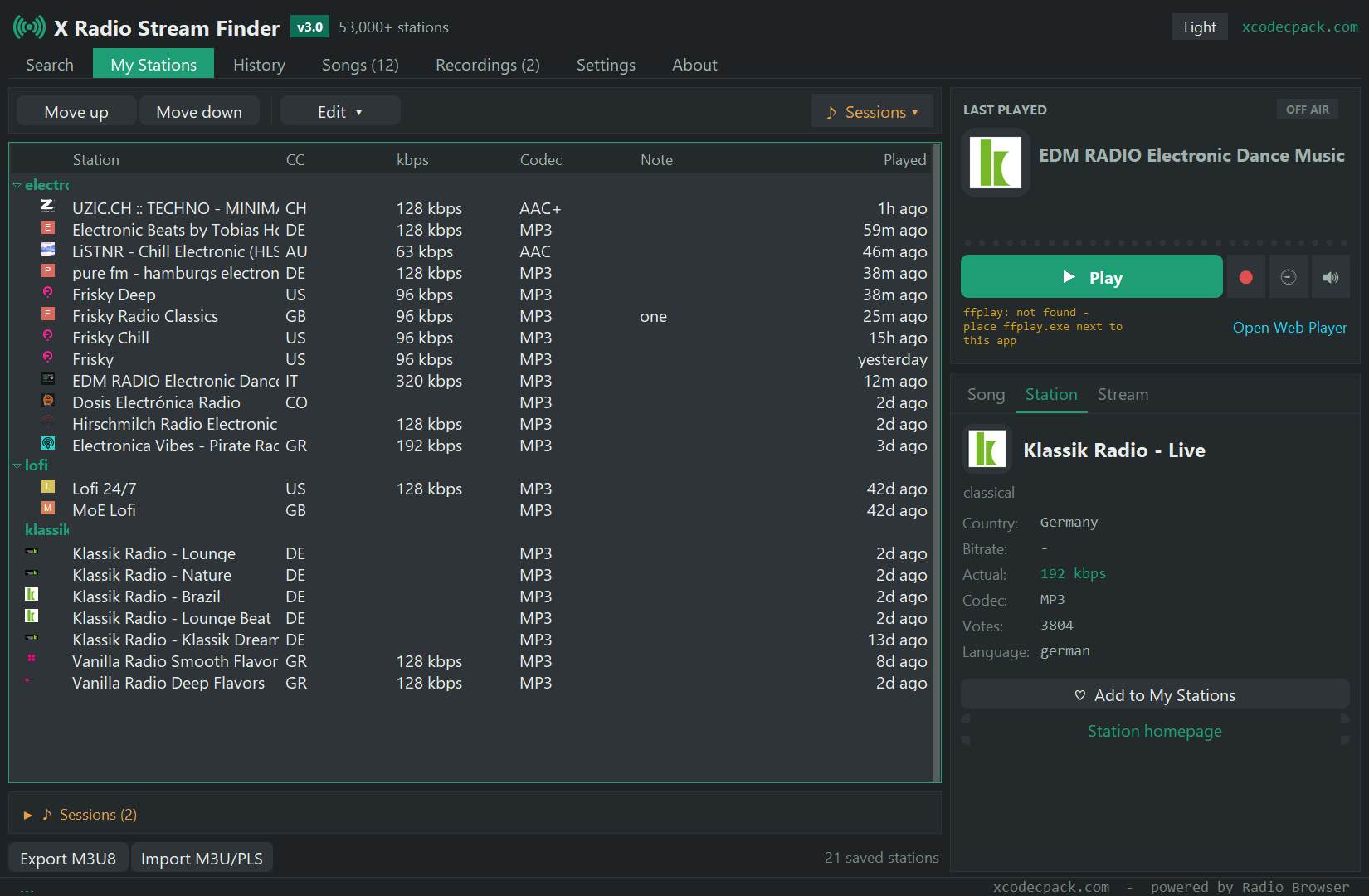
X Radio Stream Finder 3.0 - searching internet radio stations, with the Now Playing panel, the current song and the visualizerX Radio Stream Finder 3.0 - songs bookmarked from the radio, with playlists and play countsX Radio Stream Finder 3.0 - listening history with every song title, time and stationX Radio Stream Finder 3.0 - favourite radio stations organised into groupsX Radio Stream Finder 3.0 - the X Light themeX Radio Stream Finder 3.0 - the Recordings tab with station, length and size of each recordingX Radio Stream Finder 3.0 - settings with the theme picker and settings export

Search - stations by name, genre, country, language or codec (1 / 7)

How to listen to internet radio on Windows

Find an internet radio station

Search 50,000+ stations from the Radio Browser database.

  1. Type a genre, a name or a country and press Enter. A quick genre button - jazz, classical, rock - works too.
  2. Narrow it down with Country, Language and Codec, and sort by votes, clicks or bitrate.
  3. Click a station to see its genres, real bitrate and stream address on the right.

New in 3.0: click Filters next to Search, or press Ctrl+L, to hide the filter row and the genre buttons. The app remembers it.

Play a stream in the app

The built-in player uses ffplay from FFmpeg.

  1. Put ffplay.exe next to the app. It comes with every standard FFmpeg download.
  2. Double-click a station, or select it and click Play.
  3. Watch Now Playing for the LIVE timer and the visualizer. The Song tab under it shows the artist, the title and the songs played before.

No ffplay? Streams open in VLC, MPC-HC or your default player instead. Get FFmpeg from free-codecs.com.

Save a song you hear on the radio

Star it now, look it up later.

  1. Press Ctrl+B or click Star on the Song tab while the song plays. YouTube and Spotify sit next to it.
  2. Open the Songs tab and sort your songs into playlists.
  3. Double-click a song to search it on YouTube. Right-click for Spotify, Apple Music, Beatport and more.

Missed the star? Every title is in the History tab, with the time and the station.

Keep your stations and playlists

My Stations is saved by itself.

  1. Click Add to My Stations, or right-click a station in the results.
  2. Sort them into groups and add notes.
  3. Export as M3U8 for VLC, foobar2000 or Winamp, or import an M3U or PLS file.

Watch TV too? Your saved stations show up as a playlist in X IPTV Player.

Switch between light and dark

New in 3.0: the look of the other X apps.

  1. Click Light in the header. The button turns into Dark to go back.
  2. Want another colour? Settings has 15 themes, from Nord to Terminal.

Record a stream or fall asleep to the radio

Both sit next to the Play button.

  1. Click the red Rec button to save the stream to Downloads\X Radio Recordings. It needs ffmpeg.exe next to ffplay.exe.
  2. Open the Recordings tab to play, rename or delete a recording. Change... picks another folder.
  3. Click the clock-and-moon button and pick a time. It turns green and counts down, then playback stops by itself.

PC going to sleep mid-song? Since 3.1 the app keeps Windows awake while it plays, and lets it sleep again when the timer stops the radio. Want the PC to shut down too? Pair it with X Shutdown Timer.

What's new in X Radio Stream Finder
v3.1 "Night Shift" November 2026 latest
  • Keeps the PC awake while a station plays or records - on by default in Settings. The screen can still turn off, and Windows can sleep again once playback stops, also when the sleep timer stops it
  • Song pop-up in three sizes: Large with a Star button, Compact, or a slim Strip - or Off. Pick the corner of the screen and preview it with Show a test
  • One-piece search field: a search icon, a hint, the clear button and recent searches sit inside the box. Esc clears it, and Filters is a normal button
  • New sleep timer button with a clock-and-moon icon. While the timer runs it turns green and shows the minutes left, yellow in the last 30 seconds
  • Long station names and song titles end with ... and scroll only when you point at them, with the full text in a tooltip
  • Smooth borders on dropdowns and text boxes, and menus follow the dark or light theme
v3.0 "Family Look" November 2026 13 changes
  • The look of the other X apps on every tab: new X Dark and X Light themes, panels with clear headings, one style for buttons, checkboxes, dropdowns and scrollbars
  • Recordings tab: every recording with its station, length and size - play, show in folder, rename or delete. Recordings now go to their own folder
  • A new radio-wave app icon, and the real station count in the header
  • About tab: listening statistics as tiles, with Copy / Share
  • Light / Dark button in the header, next to a version badge
  • Filters button: hide or show the filter row and the genre buttons (Ctrl+L), remembered between launches
  • Song, Station and Stream tabs under the player: the song on air with Star, YouTube and Spotify, the last songs heard on the station, the station details and the stream links - nothing is cut off in a smaller window
  • Flat tab bar, a NOW PLAYING panel with the LIVE timer in its heading, and Rec, Sleep and Volume as icon buttons next to Play
  • The window title bar and the dialog boxes follow the theme (Windows 11 takes the exact colours, Windows 10 switches dark or light)
  • Switching themes now repaints every border, text and the visualizer straight away
  • 15 themes instead of 24: near-duplicates are gone, the older themes got their own accent colour, and the Play button follows the theme. Anyone who used a removed theme gets X Dark
  • The portable ZIP is now the main download - unzip and run, nothing installed. The installer is still there
  • The portable ZIP has one name for every version: X-Radio-Stream-Finder-portable.zip
v2.8 "Mood Lighting" November 2026 4 changes
  • Eight new themes: Nord, Dracula, Gruvbox, Tokyo Night, Solarized Dark, Oceanic, Graphite and Daylight
  • Daylight, the first light theme
  • Themes carry their own accent colour
  • The right icon in the window and taskbar, and the installer is back
v2.7 "Song Hoarder" 2026 3 changes
  • Songs tab: star the song on air and sort songs into playlists
  • Search a saved song later on 12 services, from YouTube to Beatport
  • History grouped by day, station or song

Internet radio on Windows - frequently asked questions

What is X Radio Stream Finder?
X Radio Stream Finder is a free internet radio player for Windows 10 and 11. It searches the Radio Browser database of 50,000+ stations, plays streams inside the app, saves your favourite stations and the songs you hear, and exports M3U and PLS playlists.
Is X Radio Stream Finder free?
Yes - free, with no account, no ads in the app and no trial. Like every tool on xcodecpack.com it is funded by the ads on this site.
Does it need to be installed?
No. The main download is a portable ZIP: unzip it to any folder or a USB stick and run X-Radio-Stream-Finder.exe, with nothing installed and no registry changes. If you prefer Start Menu shortcuts, the installer sets it up for your user account only, with no admin rights.
What is ffplay.exe and do I need it?
ffplay.exe is the player from FFmpeg. It is optional. With it, streams play inside X Radio Stream Finder. Without it, Play opens the stream in VLC, MPC-HC or your default player. ffplay.exe comes with every standard FFmpeg download.
How do I save a song I hear on the radio?
While the song plays, press Ctrl+B or click Star on the Song tab under the player. You can also star any title in the History tab. Saved songs appear in the Songs tab, where you can sort them into playlists and add notes.
How do I find a radio song on YouTube or Spotify later?
Open the Songs tab and double-click the song to search it on YouTube. Right-click it for 11 other services, including Spotify, Apple Music, SoundCloud and Beatport. Station tags are removed from the search, and searched songs get a tick.
How do I save my favourite stations?
Click Add to My Stations on the Station tab, or right-click a station in the results. My Stations keeps them between launches, in groups and with notes, and exports the whole list as an M3U8 playlist.
Can I use my existing radio playlists?
Yes. Import an M3U, M3U8 or PLS file in the My Stations tab and the stations are added, without duplicates. A plain text list of stream links can be turned into an M3U first with the free X M3U Converter on this site.
Can I hide the search filters?
Yes, since version 3.0. Click Filters next to the Search button, or press Ctrl+L, to hide the country, language, codec and sort row and the genre buttons. Click it again to bring them back. The choice is remembered.
Is there a light theme?
Yes. Click Light in the header for the X Light theme, and Dark to go back. Settings has 15 themes in all, from Nord and Dracula to Cyberpunk and Terminal.
Can I record internet radio?
Yes. Click the red Rec button next to Play while a station plays and the stream is saved to Downloads\X Radio Recordings. The Recordings tab lists every recording with its station and length. Recording needs ffmpeg.exe in the same folder as ffplay.exe.
Will my PC go to sleep while I listen?
Not since version 3.1. While a station plays or records, X Radio Stream Finder asks Windows to stay awake, so the PC does not sleep or hibernate mid-song. The screen can still turn off. When playback stops - by you or by the sleep timer - the PC can sleep again. Turn it off in Settings if you prefer.
Can I change or turn off the song pop-up?
Yes. Settings has Large (with a Star button), Compact and Strip, or Off, plus the corner of the screen where it appears. Show a test previews your choice. Clicking the pop-up stars the song.
Can I share my listening stats?
Yes, since version 3.0. The About tab shows your listening time, songs heard and stations played. Click Copy / Share to copy them as text or post them on X, Facebook or Reddit. The statistics are stored on your PC only.
Where does the station data come from?
From the Radio Browser API, a free and open database of internet radio stations kept up to date by its community. It has the name, country, language, genres, bitrate, codec and votes of each station. No account or API key is needed.
Windows Defender blocks it. Is it safe?
Yes. Small apps without a paid code-signing certificate are sometimes flagged as a false positive. The portable ZIP has no self-extracting part, which helps. If it is blocked, report the file to Microsoft as a false positive.
Which Windows versions does it run on?
Windows 10 and 11, 64-bit. The main download is a portable ZIP that needs no installation, and there is an installer too.

Get X Radio Stream Finder for Windows
Free - Windows 10 and 11, 64-bit - v3.0 - portable ZIP - 15.8 MB

Download X Radio Stream Finder 3.0
Unzip it anywhere, even on a USB stick, and run X-Radio-Stream-Finder.exe. Prefer Start Menu shortcuts? Get the installer (11.7 MB) - no admin rights needed.

Defender may flag it as a false positive - report it to Microsoft if it is blocked.

Advertisement