Write ISO images to USB drives and SSDs
X Drive Writer is a free, portable Windows tool that writes bootable ISO images to USB sticks, external SSDs and internal drives. DD mode for Linux installers, Partition + Extract mode for Windows ISOs - all from a single 10 MB executable, no installation required.
Everything you need to build a bootable drive
Built for anyone who needs to install Windows, try a Linux distribution, or write a rescue ISO - without the bloat or the complexity.
USB and SSD support
Writes to any block device Windows can see - USB flash drives, portable SSD enclosures, SATA drives through docking stations, even internal NVMe drives when explicitly enabled.
Two write modes
DD mode for raw byte-for-byte writing (Linux Mint, Ubuntu, Debian, Fedora, Arch, rescue ISOs). Partition + Extract mode for Windows 10/11 installers and legacy BIOS boot.
Safety-first design
The Windows system drive is physically filtered out of the target list and can never be selected. Internal drives are hidden behind an Advanced toggle and require typing the drive model before writing.
No install, portable
A single ~10 MB executable. No install, no registry, no bundled adware. Drop it on a rescue USB and carry it wherever you need to rebuild a machine.
Live progress and speed
Real-time write speed in MB/s, ETA, bytes written and a smooth progress bar so you know exactly how long a 5 GB Windows 11 ISO will take on your drive.
Auto filesystem selection
In Partition + Extract mode, X Drive Writer picks FAT32 automatically for universal UEFI/BIOS boot, and falls back to NTFS only when a single file larger than 4 GB is detected inside the ISO (common in Windows 11).
Two write modes, one tool
Pick the mode that matches your ISO. If in doubt, DD mode works for virtually every modern bootable image.
DD mode
Byte-for-byte raw write. The ISO is copied as-is to the start of the drive, preserving its own partition table and boot code.
- Linux ISOs (Mint, Ubuntu, Fedora, Arch, Debian)
- Modern Windows 10 / 11 hybrid ISOs
- Rescue and antivirus ISOs (Hiren's, SystemRescue)
- Any hybrid ISO marked isohybrid
- Fastest path - no filesystem operations
Partition + Extract
The drive is cleanly partitioned and formatted (FAT32 or NTFS if large files are detected). ISO contents are copied file-by-file, then the Windows boot sector is installed for legacy BIOS compatibility.
- Windows 10 and Windows 11 install media
- Windows Server installers
- Drives larger than the ISO (partition uses full size)
- Legacy BIOS boot - bootsect /nt60 applied
- UEFI boot - ISO's EFI loader is used directly
How to write an ISO to a drive
From a downloaded ISO to a ready-to-boot drive in under two minutes on a modern USB 3 SSD.
Download and run
Download the 10 MB executable. Run it - Windows will prompt for administrator rights, which are required to write to physical drives.
Pick the ISO
Click Browse and select the ISO file. X Drive Writer reads its volume label and size, and warns if the target drive is too small.
Pick the drive
Select a target drive from the list. USB drives appear first. Enable Show internal drives for SATA or NVMe SSDs. The Windows drive is never shown.
Write and boot
Click Write to Drive, confirm, and wait. Once finished, safely remove the drive or reboot straight from it.
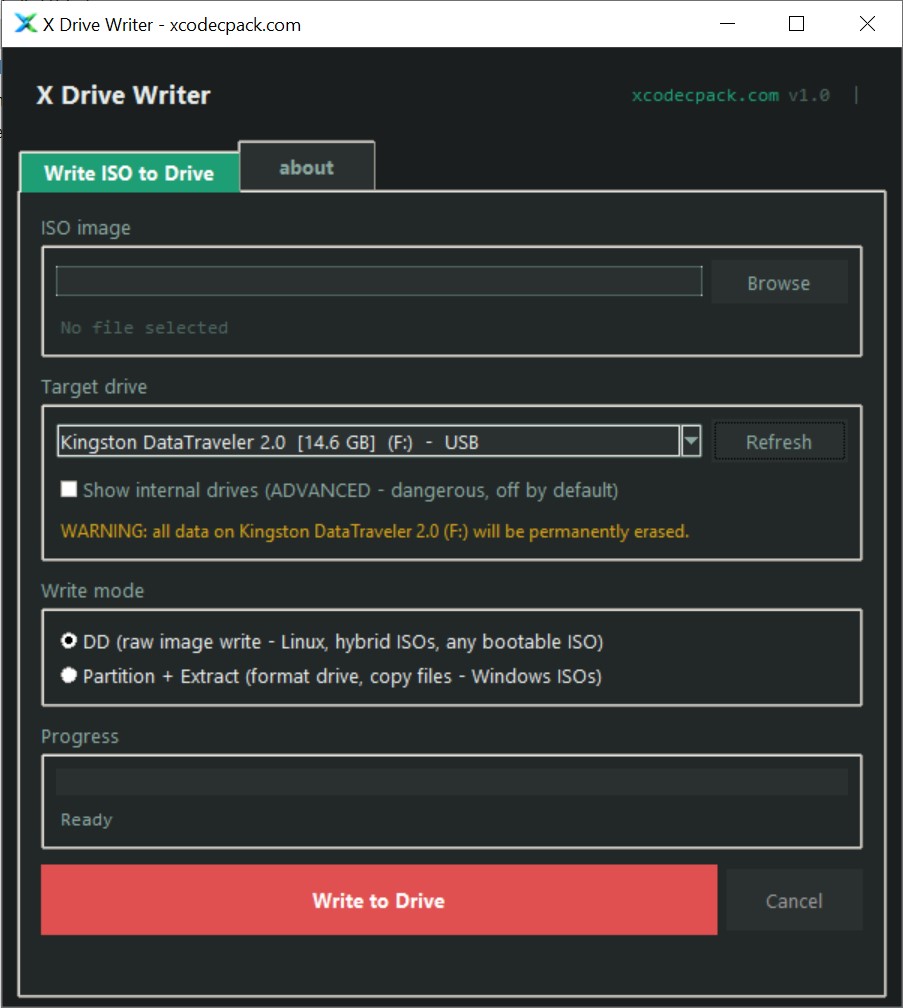
The interface - clean, dark, no bloat
How X Drive Writer protects you from disaster
Writing an ISO to the wrong drive can destroy irreplaceable data and, if the system drive is hit, make a computer unbootable. X Drive Writer goes out of its way to make that hard to do by accident.
The Windows system/boot drive is filtered out entirely. X Drive Writer asks Windows which physical disks host the running OS and the EFI system partition, and drops them from the target list before you ever see it. Those drives cannot be selected from the UI.
Internal drives are hidden by default.
Only removable USB drives appear until you tick the
Show internal drives (ADVANCED) checkbox. Internal
drives are clearly marked with an [INTERNAL] tag
in red, along with their bus type (SATA, NVMe) and media
type (SSD, HDD).
Writes to internal drives require a two-step confirmation. First a warning dialog, then a second modal where you must type the exact drive model name before the Proceed button does anything. This makes accidental writes to an internal SSD effectively impossible.
Frequently asked questions
Quick answers on ISO writing, drive compatibility, and safety.
Is X Drive Writer really free?
Yes, 100% free for personal and commercial use. No trial, no nag screens, no bundled software. Like every tool on xcodecpack.com, it is funded by non-intrusive display ads on this site and nothing else.
Does it work with Windows 11 ISOs?
Yes. Modern Windows 11 ISOs are hybrid images and can be written directly with DD mode, which is the simplest path. If your PC's BIOS does not boot the DD-written drive, switch to Partition + Extract mode - it formats the drive, copies files, and installs a Windows boot sector for legacy BIOS compatibility.
Can I write to an external SSD?
Absolutely. External USB SSDs (portable enclosures, M.2 docks, SATA-to-USB adapters) appear in the USB drive list and work exactly like a USB stick. They are normally much faster - expect 300-800 MB/s depending on the enclosure and cable.
Can I write to an internal SATA or NVMe SSD?
Yes, but tick the Show internal drives (ADVANCED) checkbox first. X Drive Writer will still refuse to show the drive running Windows, and internal writes require a second confirmation where you must type the drive model name exactly. This is deliberate - an accidental write to an internal drive destroys its data permanently.
Why is the drive capacity smaller after writing?
In DD mode, the drive now contains the ISO's own partition table, which is typically much smaller than the drive itself. Windows will only see the ISO-sized partition. To reclaim the full capacity later, open Disk Management and reformat the drive - or use Partition + Extract mode, which always uses the full drive size.
Will the drive boot on both UEFI and BIOS systems?
Usually yes. Most modern ISOs are hybrid and boot on both. For Windows installers in Partition + Extract mode, FAT32 + UEFI is supported by default, and bootsect /nt60 handles legacy BIOS boot. If an ISO contains a file larger than 4 GB, X Drive Writer switches to NTFS automatically - some older firmwares cannot UEFI-boot NTFS, in which case DD mode is the better choice.
How is this different from Rufus or balenaEtcher?
X Drive Writer is intentionally smaller and simpler. It does one thing - write ISOs to drives - with a stricter default safety posture. Internal drives are hidden unless you explicitly enable them, and the system drive is always filtered out. There is no Windows-to-Go, no persistence, no ISO downloader - just DD and Partition + Extract.
Why does it need administrator rights?
Windows only allows admin processes to open physical
drive handles (\\.\PhysicalDriveN) and to
run diskpart. Without elevation there is no way to
partition a drive or perform raw writes. X Drive Writer
requests UAC elevation on launch and does not escalate
silently.
More free tools from xcodecpack.com
Lightweight utilities for media, codecs, and Windows troubleshooting.