Sample Rate Converter - free online audio resampler & sample rate changer
Change the sample rate of any audio file - WAV, MP3, FLAC, M4A, AAC, OPUS, AIFF or OGG - to any standard rate (44.1 kHz, 48 kHz, 88.2 kHz, 96 kHz, 192 kHz). Use this online resampler for quick jobs (FFmpeg server-side), or download the free Windows app for studio-grade soxr VHQ resampling.
Click to select an audio file or drag it here
WAV, FLAC, AIFF, MP3, M4A, AAC, OPUS, OGG - any sample rate, any bit depth, output is always WAV
ffmpeg -i input.wav -ar 48000 -c:a pcm_s16le output_48000hz.wav
Your file is uploaded over HTTPS, resampled on our server with FFmpeg, streamed back and deleted immediately.
Resample audio in three steps
Select your audio file
Drop any audio file - WAV, FLAC, AIFF, MP3, M4A, AAC, OPUS or OGG - up to 50 MB. The sample rate converter reads the file header and shows your source sample rate, channels, bit depth and duration instantly. The Windows desktop app accepts the same formats plus WMA, APE and WavPack, with no file size limit.
Choose target rate and bit depth
Pick your target sample rate - 48,000 Hz is the standard for video and professional audio production. 44,100 Hz is the CD standard. Choose 16-bit for compatibility, 24-bit for studio work, or 32-bit float for further processing in a DAW.
Download resampled WAV
Click Resample. The file is uploaded over HTTPS, processed with FFmpeg on our server, and immediately streamed back to you. Your file is deleted from the server as soon as the download starts. For offline, higher-quality resampling use the Windows app.
Which sample rate should you use?
The standard for music distribution, streaming platforms (Spotify, Apple Music, Tidal) and general audio. Most DAWs default to this. Use this for music projects with no video component.
The standard for video production. Required by most video editing software (Premiere Pro, DaVinci Resolve, Final Cut), broadcast delivery specs, and professional audio interfaces. If your audio goes with video, use 48 kHz.
Used in studio recording and high-resolution audio releases. Captures more headroom above 20 kHz for processing flexibility. Downsampled to 44.1 or 48 kHz for final delivery. Files are roughly twice the size of 48 kHz.
Convert between standard sample rates
The most common sample rate conversions, with the reason you'd run each one. Pick a target rate above and drop your file in - any source format is fine.
Convert 44.1 kHz to 48 kHz
Music produced at the CD standard (44.1 kHz) needs to move to 48 kHz before it can be embedded in video, sent to a video editor, or delivered to broadcast. This is the single most common sample rate conversion in production work.
Convert 48 kHz to 44.1 kHz
Field-recorded or video-project audio at 48 kHz needs to come down to 44.1 kHz before delivery to Spotify, Apple Music, Tidal, Bandcamp or CD pressing. Use the highest quality available for this downsample - non-integer ratios benefit most from soxr VHQ.
Convert anything to 96 kHz
Upsampling to 96 kHz is common when archiving, when running aggressive plugin chains that benefit from extra headroom above 20 kHz, or when distributing as high-resolution audio. Upsampling does not add information, but it does help downstream processing.
Convert to 22.05 kHz or 11.025 kHz
Legacy formats (older games, low-bandwidth voice, retro-style chiptune work) sometimes need to go below the CD rate. Both rates are integer divisors of 44.1 kHz so the conversion is mathematically clean.
Convert to 176.4 or 192 kHz
Studio-grade high-resolution audio rates. 176.4 is a clean integer multiple of 44.1, 192 is a clean integer multiple of 48 - pick the one that matches your original source family to avoid one extra non-integer resample.
Change MP3 sample rate (or M4A, AAC, OPUS)
Drop a compressed audio file into the converter and it will be decoded with FFmpeg, resampled to your target rate, and returned as a WAV. For sample rate work this is the right approach - resampling compressed audio in place would require a second lossy round-trip.
X Sample Rate Converter for Windows
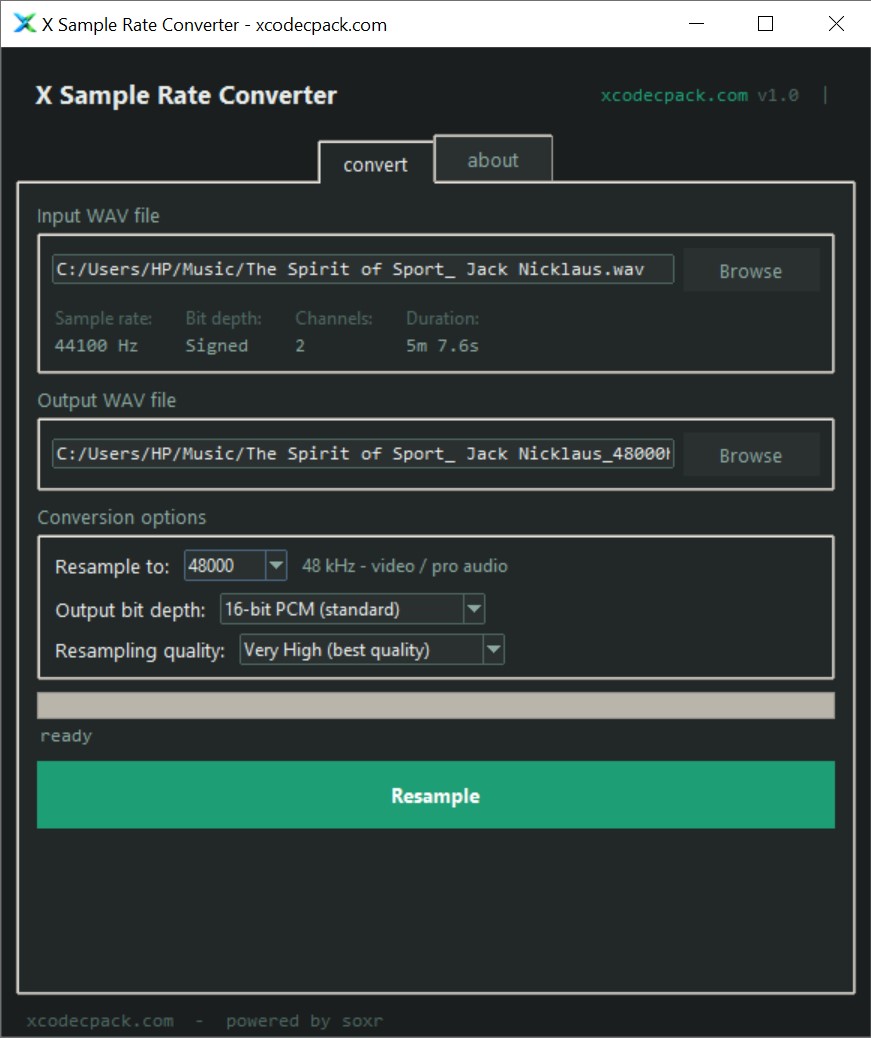
- Recent files - last 10 inputs remembered, one-click reopen
- Quality tooltips - clear explanations of QQ / LQ / MQ / HQ / VHQ
- Open output folder - one-click reveal after each conversion
- Auto-rename on conflict - no more accidental overwrites
- Remembers output folder + optional completion sound
Previously in v1.1: drag & drop, MP3 / M4A / AAC / OPUS / WMA / APE input via bundled FFmpeg.
The Windows desktop app uses soxr - the SoX resampler library - which is a professional-grade resampling engine in the same quality class as Voxengo r8brain. Open source, MIT licensed, and produces audibly better results than FFmpeg's SWR resampler at high quality settings.